Shareable Link: How to easily create and send a Paperless Post RSVP link
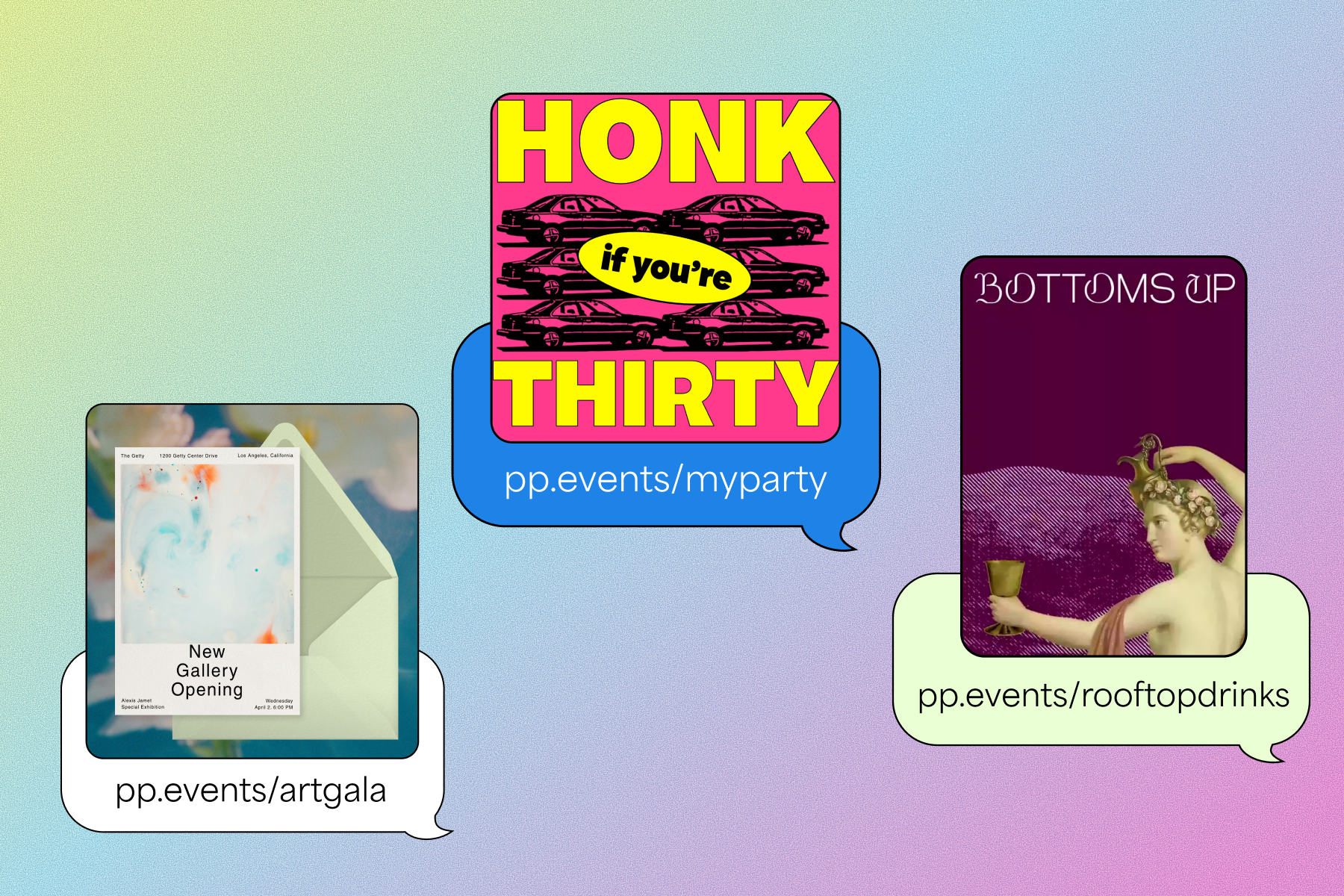
Paperless Post makes every step of the party planning process easier—from designing the perfect invitation for your event to getting it into the right hands. Once you’ve finalized the details of your event and customized your design, it’s time to decide how you want your invitation to reach your guests. There are two ways to invite guests. You can build a guest list and send your invitations directly from our platform using guests’ email addresses or phone numbers. Or, you can create a Shareable Link to paste into your own texts, DMs, group chats, or social posts. Both options have their advantages, but in this guide, we’ll explore how Paperless Post Shareable Links can make sharing your invitation—and planning your party—as seamless as possible.
What is a Shareable Link?
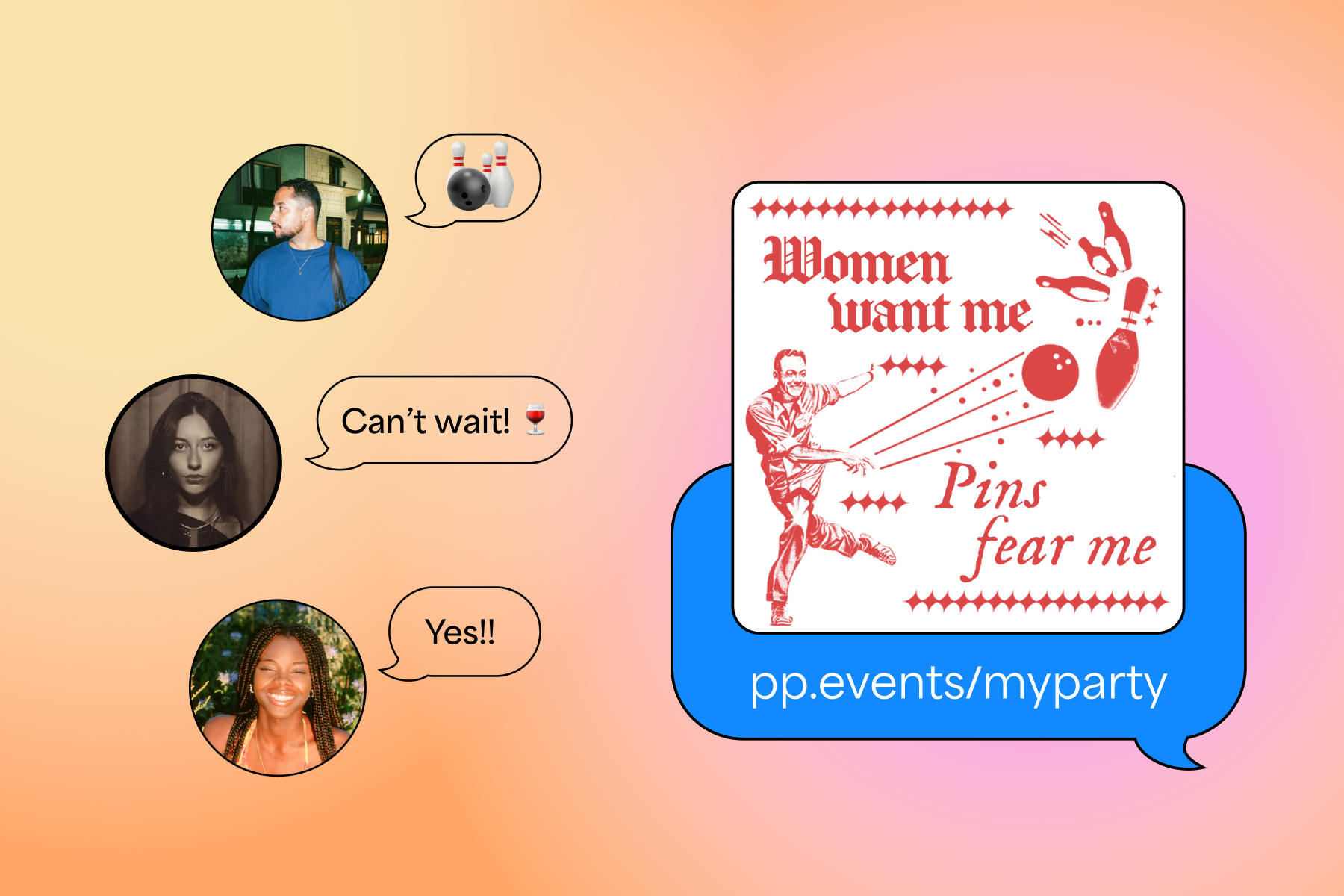
A Shareable Link is a URL that you can copy, paste, and send in just a few clicks without creating a guest list. It’s a great way to distribute a Card invitation or Flyer invite outside of the Paperless Post platform. Send it via text, share it on social media, embed it in an email, or drop it into a group chat—then sit back and wait for the RSVPs to roll in!
Why should I use a Shareable Link?
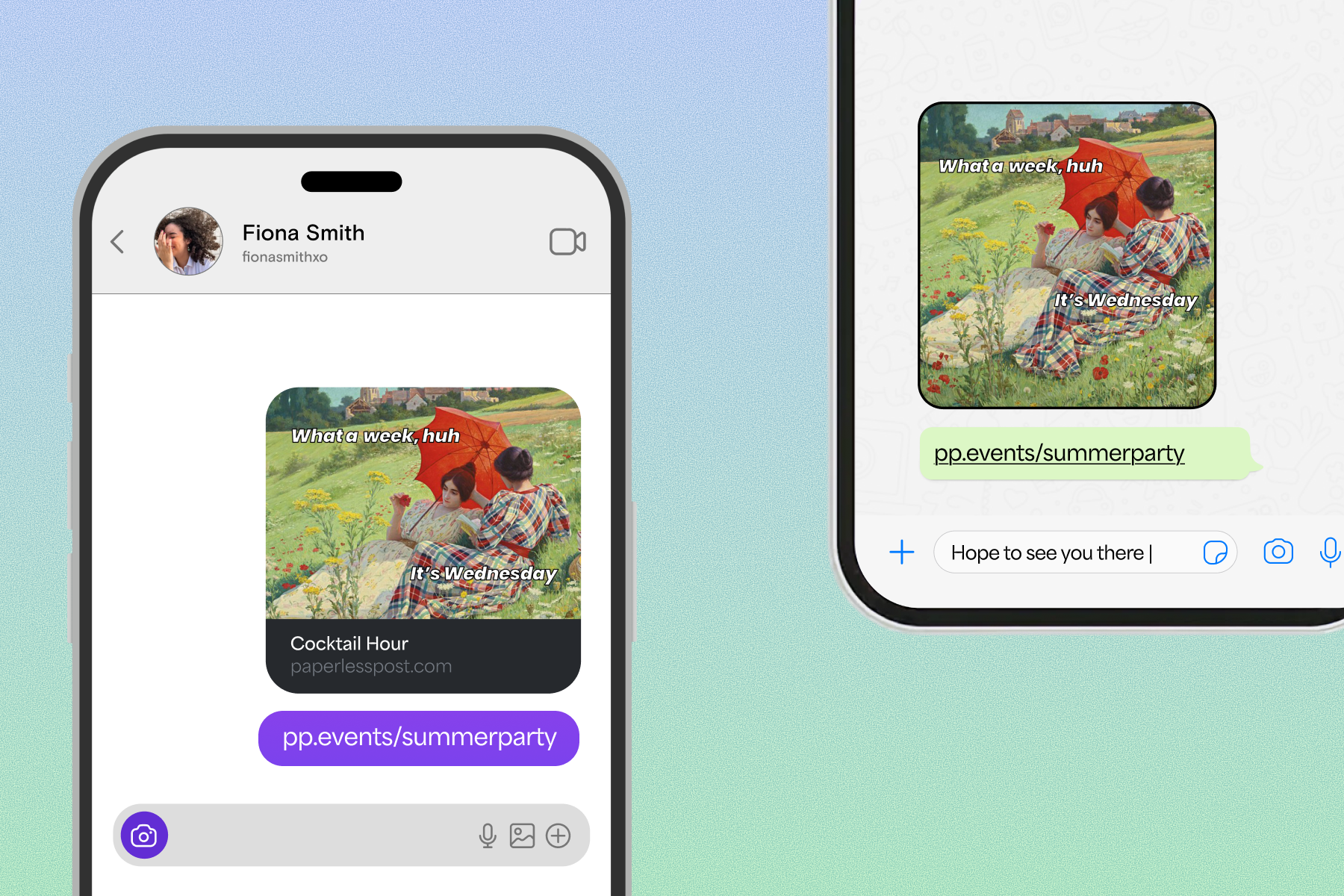
There are several advantages to using a Shareable Link. If you enjoy hosting parties with larger guest lists, a Shareable Link allows you to easily send your invitation to a large group all at once. Additionally, if you’re inviting guests and don’t necessarily have everyone’s direct contact information, this allows you to share the link anywhere you’re able to reach them—social posts, internal office messaging systems, and beyond. Plus, for open-invite events, you can choose to let guests share the RSVP link with others, making it easy to expand your guest list.
However, if you’re hosting an event where it’s important to you to be able to personalize each invitation, send RSVP reminders, or keep a tally of everyone you’ve invited, adding guests through our platform may be the best sending method for you.
Getting started with Shareable Link
After customizing your invitation design, you’ll have the opportunity to choose how you want to add your guests. The process looks a little different depending on if you’re on desktop or mobile, but ultimately the result will be the same—you’ll receive a unique shareable invitation link that will help spread the word about your big event.
How to create a Shareable Link on desktop
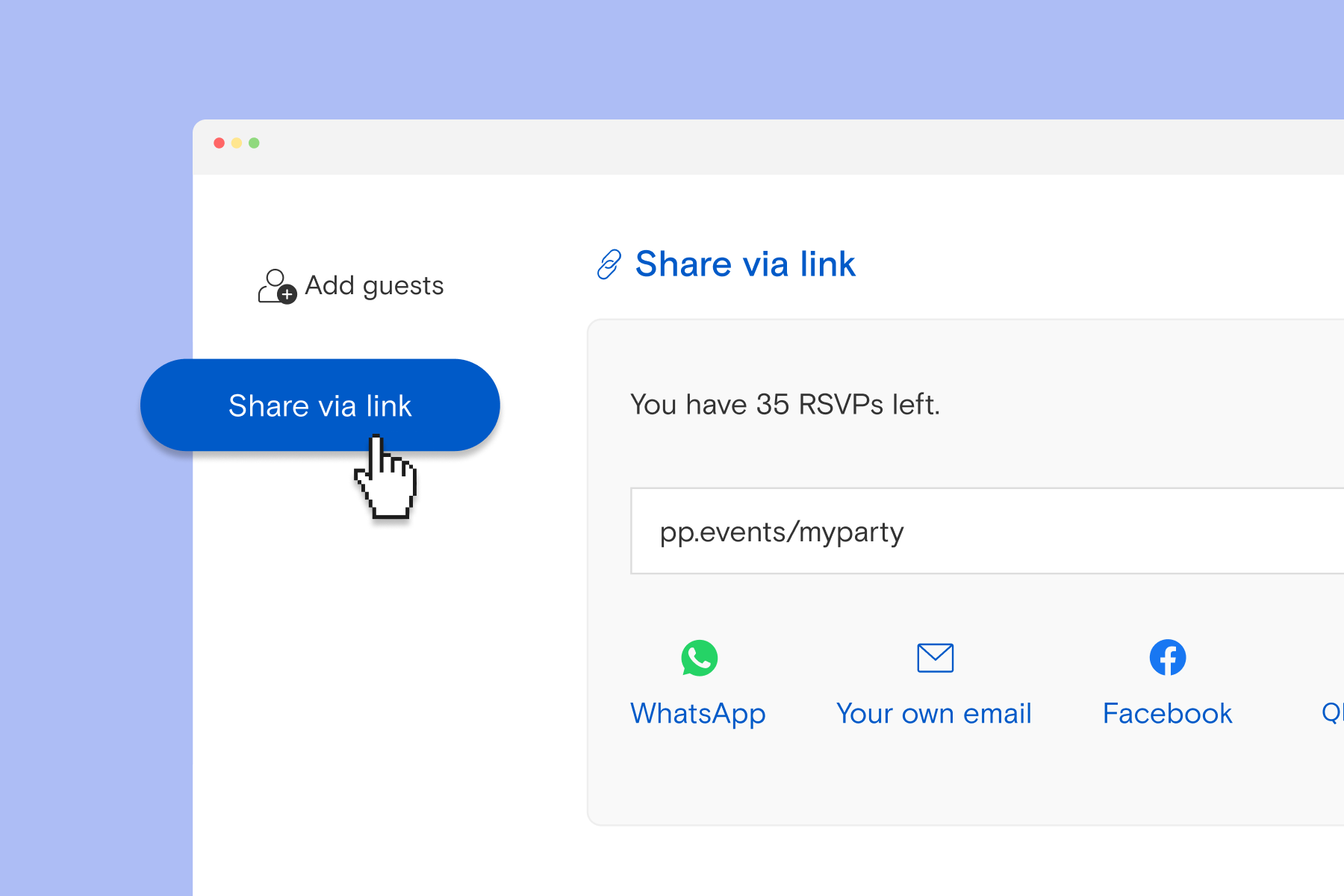
Once you’ve finished customizing your design and adding in all the event details, click “Add guests” on the top right of your screen, which will redirect you to a new page. On the left-hand side of this page, you’ll see two options for sending your invite: “Send via email or text” and “Share via link.” Select “Share via link” to use the Shareable Link feature.
Now, you’ll see all your options for generating, customizing, and sharing your link. If you’re sending a free invitation, you’ll have unlimited free sends of your Shareable Link. Otherwise, you’ll need to enter an estimated number of RSVPs and pay the corresponding amount of Coins. At this step, you can also choose to make it easy for guests to invite others to your event by toggling on “Guests can share your event link with others.” A share button will then appear on your invitation’s event page, allowing recipients to send the RSVP link to anyone they choose. Once you’ve made your selections, simply copy and paste your Shareable Link into any email, text, group chat, social media post, or messaging service of your choosing.
How to create a Shareable Link on mobile
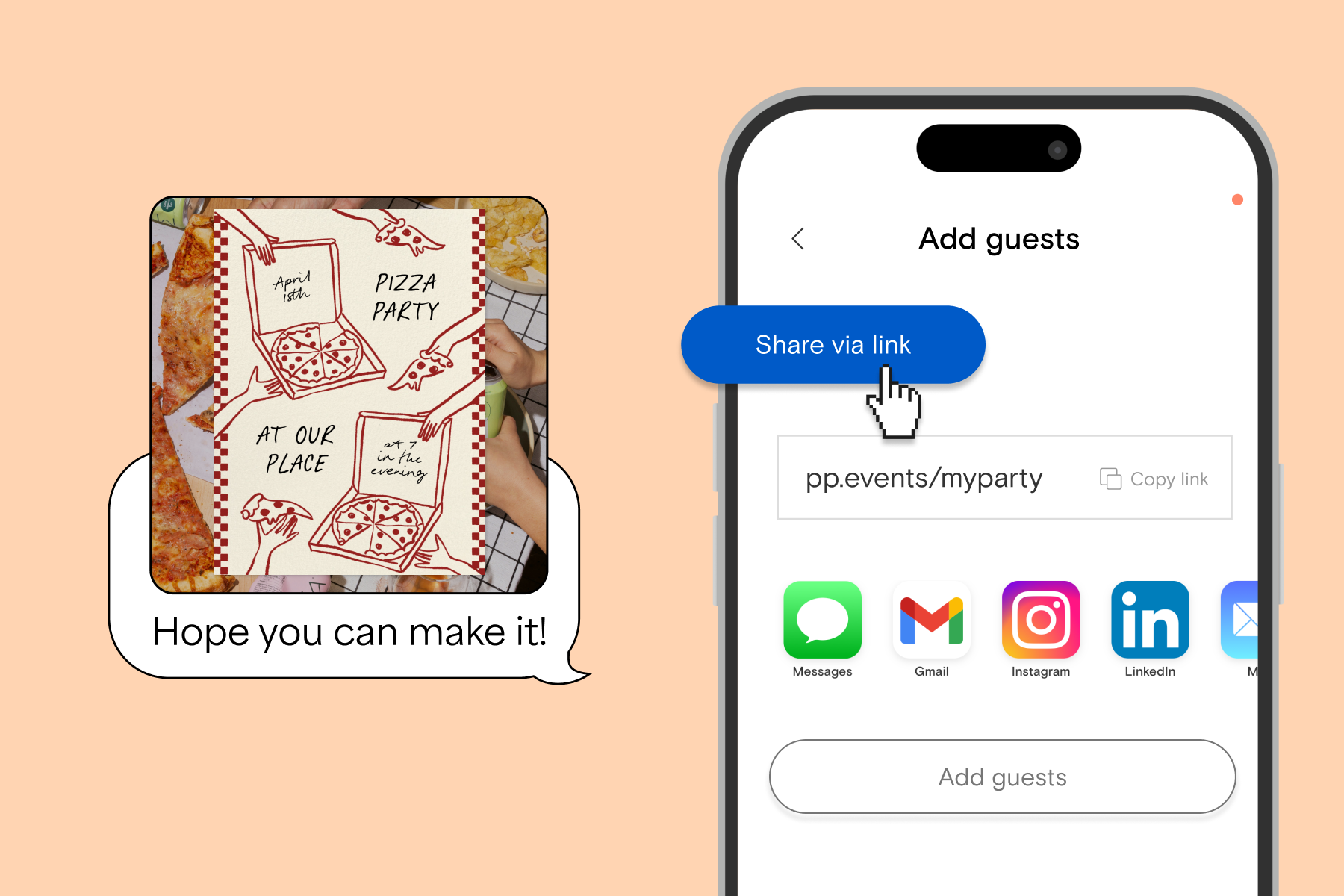
After completing your design on the Paperless Post app, tap the “Add guests” button on the right-hand side of the screen. You’ll be redirected to the “Add guests” page, where you’ll select “Share via link” to use the Shareable Link feature. You can then copy and paste your Shareable Link into any email, text, group chat, social media post, DM, or messaging service of your choosing.

How to customize your link
The ability to customize your RSVP link with a Custom URL or add password protection for your invitation is available when you select the “All Access” feature set. (It’s also included when you subscribe to Paperless Pro.) If you choose to create a Custom URL, you’ll be able to personalize your invitation’s hyperlink, making it easy for guests to access your event details anytime for everything they need to know.
How much does a Shareable Link cost?
Paperless Post offers free options for sending invitations across both Cards and Flyers. You can easily browse free invitations by using the “free” filter within any category. However, for a Card to remain free, you may have to opt out of additional design elements, like envelopes, logos, and stamps. Free designs are always free to distribute via Shareable Link. If you’ve selected a feature set with paid options, you’ll pay for your Shareable Link in Coins, based on the number of RSVPs you’re expecting.
What happens if I have more RSVPs than I planned?
If more guests end up RSVPing through your link than you initially paid for, they’ll still be able to RSVP, but their names and contact information will remain hidden to you. Paperless Post will notify you of this, and you’ll be able to unlock those guests’ details by paying the corresponding amount of Coins. To avoid any last-minute surprises, you can also set a maximum guest capacity or RSVP deadline.
Frequently asked questions about Shareable Links
What counts as an RSVP?
Whether guests select “Attending” or “Not Attending,” one RSVP will be used. If a guest is allowed a plus-one, the party’s reply still only uses one RSVP. When someone receives a link and RSVPs “Attending,” they will appear on your guest list for this event, where you can see guests’ details and send follow-up messages.
What if I sent someone an invite via email or phone and they RSVP’d again via my Shareable Link?
If you invited a guest via email or phone and they RSVP via your Shareable Link using the same contact, their response will not be deducted from your total RSVP allocation.
Why can’t I see my RSVPs? How can I unlock them?
If you receive more RSVPs than the number you initially paid for, the additional RSVPs will be hidden. You’ll receive a notification on your ‘My Events’ page prompting you to unlock them by paying for the additional guests with Coins.
Shareable Links make Paperless Post even simpler
A Shareable Link is the perfect way to take a hands-on approach to party planning. Whether you’re hosting a large professional gathering or an intimate birthday dinner, a Shareable Link makes it easy to get your invitation into the right hands and keep RSVPs rolling in—for a hassle-free party planning experience.